How to Make a PDF Searchable with PDF.co
Let's delve into the rationale behind creating PDFs and the importance of ensuring they are searchable.
In our current digital landscape, where information is readily accessible online, it's imperative to digitize our documents. Converting them into formats like TIFF, PDF, and JPEG facilitates this process. Among these formats, PDF stands out as the most widely recognized and compatible with various online platforms and databases.
When scanned documents are utilized for various purposes, the ability to locate specific information becomes crucial. Making PDFs searchable enables efficient retrieval of desired content.
IN THIS TUTORIAL
What is a Searchable PDF?
Enabling PDF searchability entails converting PDFs from mere image representations of web documents. Without this processing, PDFs remain static images, impervious to editing or additional content insertion.
Benefits of a Searchable PDF
One of the key advantages of a searchable PDF is the ease of finding information, regardless of the document's length.
Consider a scenario where a document spans 100 pages, and you need to locate a specific keyword. Reading through all those pages from the beginning would be impractical and defeats the purpose of digitizing the documents.
Instead, with a searchable PDF, you can effortlessly locate the keyword by accessing the search function through the menu or by using the shortcut "Ctrl + F" for Windows users or "Command + F" for Mac users. Simply type in the keyword, and the document will promptly direct you to instances where it appears, saving time and effort.
How to Convert PDF to Searchable PDF
In this tutorial, we'll demonstrate how to easily make a new PDF searchable within a folder. Starting with a random unsearchable PDF as our source file, you'll find this task simpler than you might anticipate. Let's dive right into the tutorial!
In order to perform this activity, you will require a free account with PDF.co and Zapier. Once you are in your account, let’s make a Zap (top-right corner button in Zapier dashboard).
Set Up Trigger
First of all, upload your sample of the unsearchable PDF in your Google Drive folder. Please choose a specific folder.
Select the Google Drive as the App and the New File in Folder as the Trigger Event. Refer to the screenshot below:
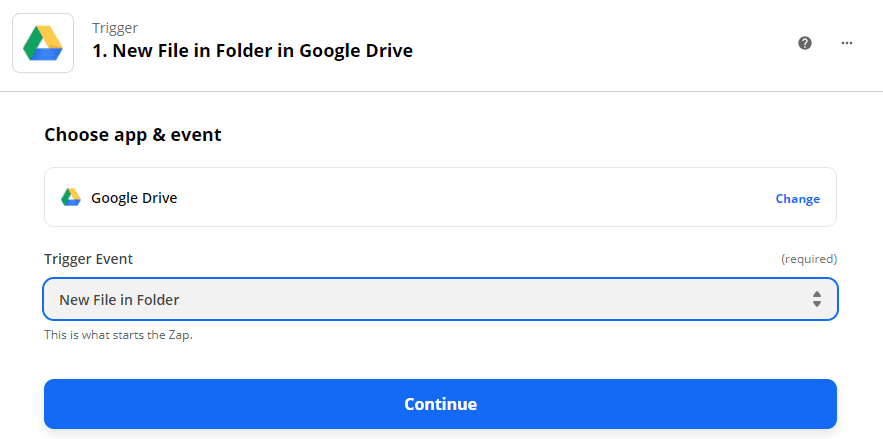
This Zap allows the engine to convert a new PDF into a searchable one any time you upload a new document to your Google Drive folder.
It is possible to use other cloud storage services such as Dropbox, OneDrive, etc. Just select the appropriate Trigger Event.
Customize Trigger Event
Follow the screenshot below to see how to customize your Trigger Event:
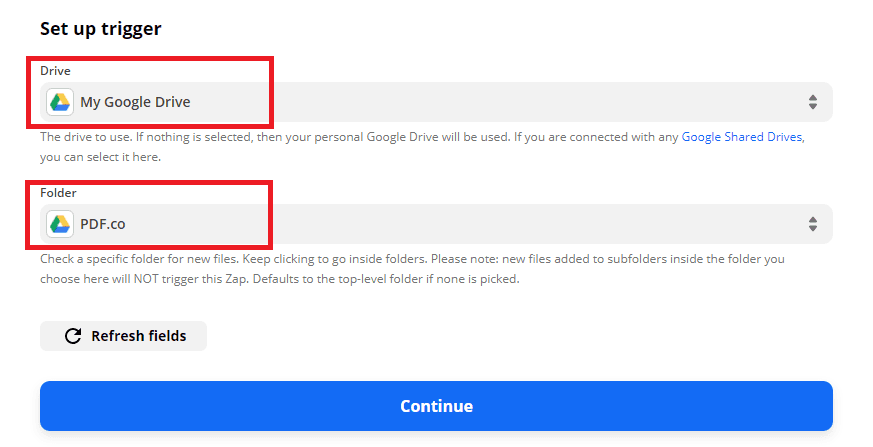
The Drive field should include My Google Drive.
The Folder field requires an appropriate folder name where your sample PDF was uploaded. This is your specific folder including all the PDF files that you are planning to make searchable automatically.
Now, let’s Test & Review the Zap and proceed to another Zap creation. Please make sure you connected the correct Google Drive account to the app.
Set Up Action Event
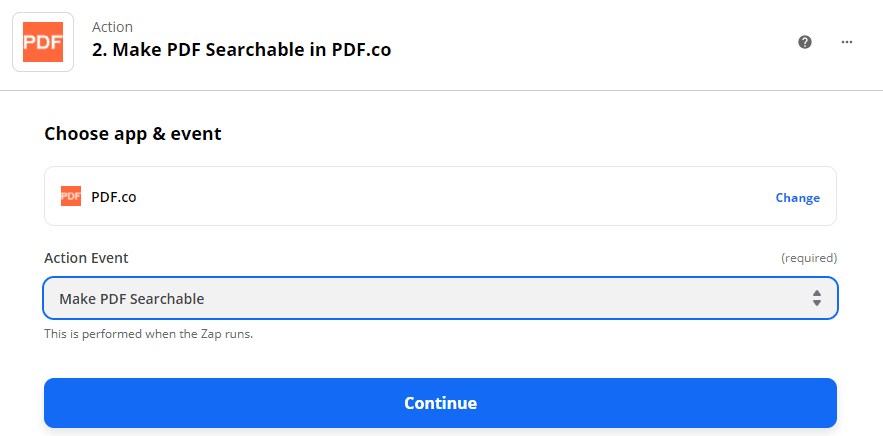
Here, you will have to set up a new Zap to make the new PDF searchable using PDF.co. For this, PDF.co should be chosen as the App and Make PDF Searchable as the Action Event.
Configure Action Event
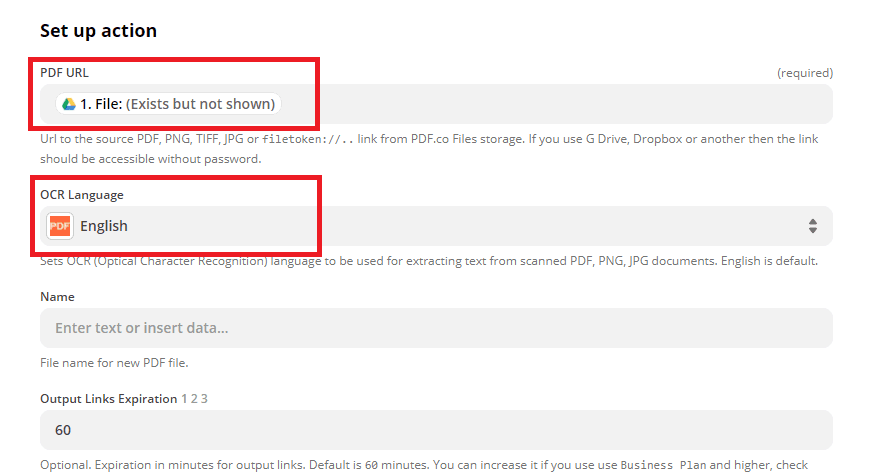
The Make PDF Searchable action should be properly configured before proceeding.
The PDF URL field specifies the sample PDF in Google Drive. The OCR Language is set to English by default. But you can choose any language required.
Now, it’s time to Test & Review the new action by clicking the button.
Once the test runs successfully, you will get a temporary URL with the output file. Just copy and paste the URL to visualize the file in your browser.
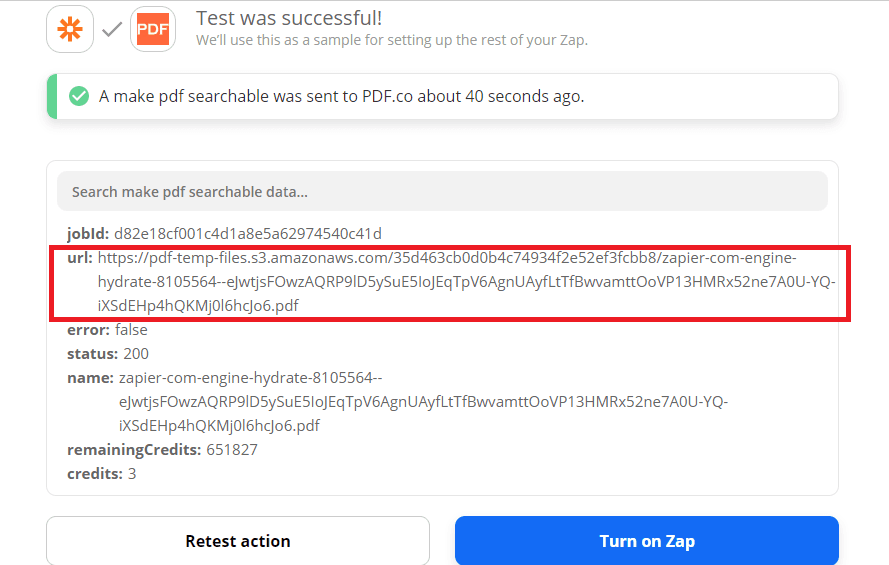
If you don’t need to automatically store your new searchable PDFs in your Google Drive, you may just proceed with Steps 3 and 4. Otherwise, please continue to Step 5.
Test and Run
We will now set up the Trigger to let the engine automatically store the new searchable PDF files back to Google Drive. Please follow the steps shown on the screenshot:
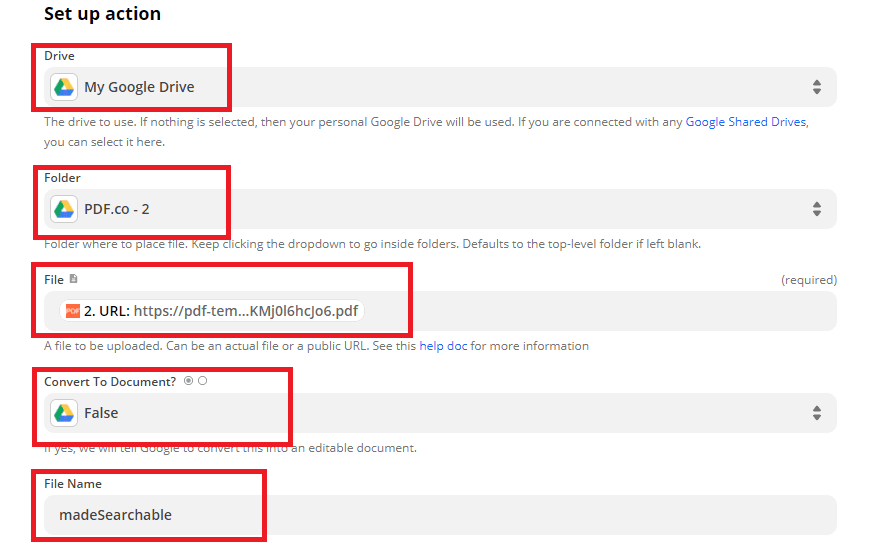
Test & Review the action after the configuration is done.
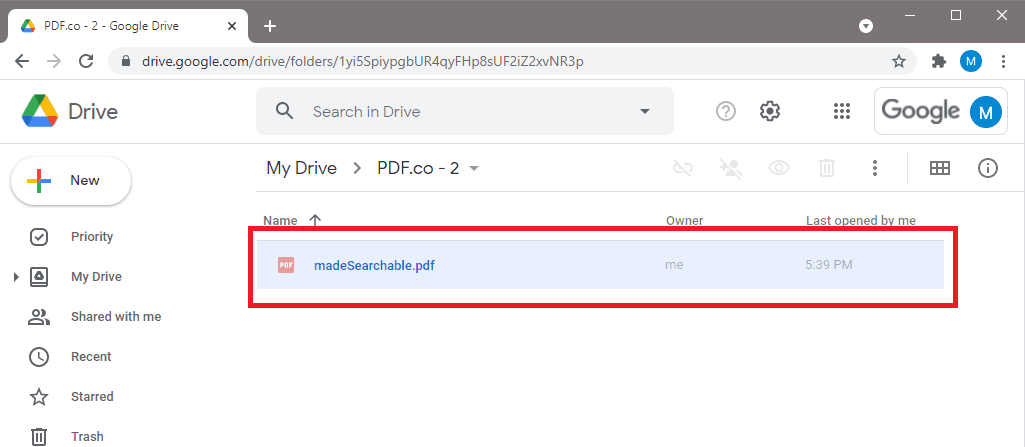
Go to your Google Drive to see the uploaded new searchable file.
If you would like more more details, go to this detailed tutorial. And don’t forget to sign up 😉
Convert Image PDF to Search PDF Online – FAQ
Why is My PDF Not Searchable?
Your PDF may not be searchable if the source document that was converted to a PDF was an image. That is because while you see the text as distinct, the PDF reader sees it as part of the whole image, which you saved as a PDF.
If that is the case, you can make it searchable using our searchable PDF tool, by converting it to a text PDF. You can then search its text, as you would any other text PDF. Our tool works faster if the source image’s quality is 72dpi or more.
How Do I Enable OCR in PDF?
You can use our searchable PDF tool to enable OCR in PDF. The tool converts the image text, to actual text, using its inbuilt OCR technology. You don’t need to change anything in the PDF itself, the tool will do the OCR processing on its own.
Can You Make a Scanned PDF Searchable?
You can make a scanned PDF searchable, using our PDF Search API. The tool uses Optical Character Recognition to identify the text in the PDF and then recreates a text PDF from that image PDF.
The rest of the image is maintained, in order not to distort the PDF’s formatting. In regard, your scanned PDF is converted into a search PDF.
How Do I Search Text in a Scanned PDF?
You can search text in an image PDF, after you convert the image text, to plain text, using our search PDF tool’s inbuilt OCR. The tool will also save the converted image PDF for you so that you can search it offline after you save it.
You don’t need to pay for this particular service if you are using it for commercial reasons. We recommend that you only upload PDF files that are less than 5MB, to get faster results. You can use our PDF compression tool to do that.
How Does the Searchable PDF Tool Work?
The searchable PDF tool works in three steps. First, it extracts the text from a PDF image. Next, it reconstructs the PDF, by including the extracted text. Finally, it saves the PDF as a searchable PDF, which you can search online or offline.
Scanned PDF Image to Searchable PDF
Overall, you can convert scanned PDF to searchable PDF online free using our tool, if the PDF is for personal use. However, if you need to convert image PDF to searchable PDF in bulk, then you need to buy credits, and use our PDF image to searchable PDF tool, which is designed for commercial use.
Related Tutorials