How to Set and Use Custom Profiles Parameter with PDF.co API and Postman when Extracting PDF to Text
Our sample document is made of vectorized texts. Extracting the texts in this PDF file needs a specific OCRMode. In this tutorial, we will show you how you can set an OCRMode in the Profiles parameter using TextFromVectorsOnly.
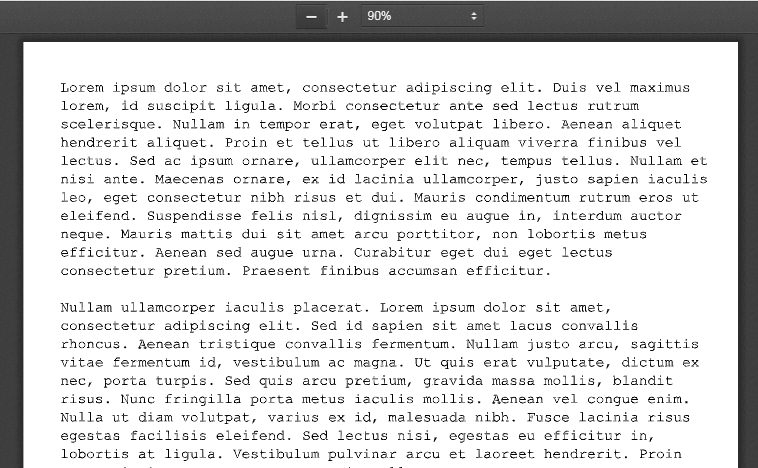
Important: This source file is a scanned image and we are not able to select and copy the text from it.
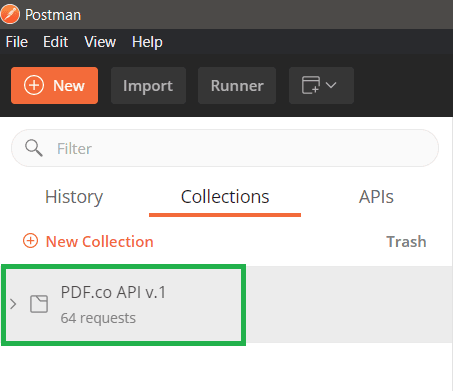
Step 1: Click the PDF.co API v.1 Folder in the Collections Tab
We will use the Postman app to show you how to pass custom Profiles to PDF.co API. First, under the Collections tab, click on the folder. The folder contains all the PDF.co API requests for easy access.
Step 2: Convert the Sample PDF to TEXT
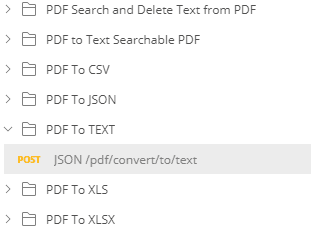
To do this, click on PDF to TEXT folder and open POST JSON /pdf/convert/to/text. It contains a prefilled JSON code that you can use and replace according to your requirement.
Step 3: Send cURL Request
You can send a cURL request using the code below. Your API key is available on your PDF.co dashboard.
curl --location --request POST 'https://api.pdf.co/v1/pdf/convert/to/text' \
--header 'Content-Type: application/json' \
--header 'x-api-key: INSERT_API_KEY_HERE' \
--data-raw '{
"url": "filetoken://03b6cfebd16a5635266c1d63",
"inline": false,
"profiles": "{ '\''profiles'\'': [ { '\''profile1'\'': { '\''OCRMode'\'': '\''TextFromVectorsOnly'\'' } } ] }"
}'
Step 4: Add the Link to the PDF to be Converted
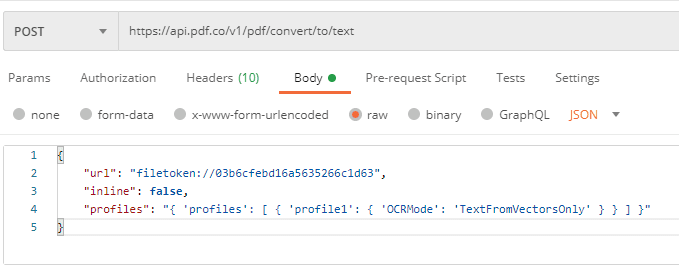
Our sample PDF file is stored in the PDF.co platform. If you’ll notice, the link is preceded with filetoken:// format. To upload your file(s) on PDF.co, log in to your PDF.co account and click on Files. Now, go to raw under the Body tab, and replace the URL with the PDF file link.
Step 5: Set the Inline Parameter and OCR Mode
We set the Inline parameter to false because we want a downloadable TEXT file. Setting Inline to true will display the extracted texts in the result.
The default OCRMode is Auto. We can change the mode by setting OCRMode:TextFromVectorsOnly inside the Profiles parameter. The other OCRModes are:
Off- No OCR is used.Auto- Default OCR. Similar toTextFromImagesAndVectorsAndFontsbut checks if the page only contains raster images to decide if OCR is needed. Only uns OCR if page contains very few text and one or more raster images. The result contains text objects produced from images and vector drawings.TextFromImagesAndVectorsAndFonts- Always runs OCR to extract text from images and vector drawings (if any). See alsoTextFromImagesAndFontsmode to read from objects except vector drawings. The result contains text objects from PDF and text objects produced from images and vector drawings using OCR functionality (if any).TextFromImagesAndVectorsAndRepairedFonts- Special mode: extracts text from images, vector drawings, and repairs text from fonts fixing the incorrect encoding. Some PDF files contain visible text which is damaged when copied (appears as ? or other incorrect symbols when extracted or copied). This mode repairs damaged text like that using the OCR functionality. The result contains text objects from PDF, and text objects produced from images, and vector drawings using OCR functionality (if any).TextFromRepairedFontsOnly- Special mode: repairs text objects with incorrect encoding using OCR functionality. Images and vectors are not processed in this mode. Some PDF files contains visible text which is damaged when copied (appears as ? or other incorrect symbols when extracted or copied). This mode repairs damaged text like this using OCR function. This mode returns repaired text objects only (no images or vector drawings are processed).TextFromImagesAndRepairedFonts- Special mode: extracts text from raster images (but skips vector drawings) and repairs text objects with incorrect encoding Some PDF files contain visible text which is damaged when copied (appears as ? or other incorrect symbols when extracted or copied). This mode repairs damaged text like this using the OCR functionality. This mode returns repaired text objects, and text objects produced from raster images (no vector drawings are processed).TextFromImagesAndFonts- Runs OCR to extract text from images (but skips vector drawings) plus the text objects. The result contains text objects from PDF, and text objects produced from images (but no vector drawings are processed) using OCR functionality.TextFromImagesOnly- Runs OCR to extract text from images (but skips vector drawings) plus the text objects. The result contains text extracted from images only.TextFromVectorsOnly- Runs OCR to extract text from vector drawings only. The result contains text objects from vector drawings only.TextFromImagesAndVectorsOnly- Runs OCR to extract text from images and vector drawings only. no text from pdf objects is included. The result contains text objects from vector drawings only.
Below is the full JSON code that we need to perform this task on the Postman app. The Profiles parameter is on line #4.
{
"url": "filetoken://03b6cfebd16a5635266c1d63",
"inline": false,
"profiles": "{ 'profiles': [ { 'profile1': { 'OCRMode': 'TextFromVectorsOnly' } } ] }"
}
Step 6: Send Request
Now, we are ready to submit our request. Click on the Send button.
Step 7: Check the Status
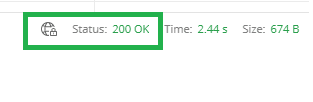
Check and see if the Status says 200 OK.
Step 8: Copy and Paste the Link to Browser
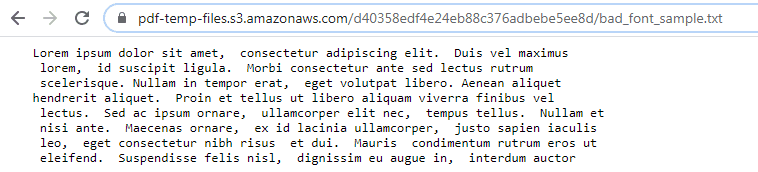
The result will generate a URL . This is the link that we will use to download the converted PDF file. Copy the URL and paste it on your browser.
Awesome! We have just converted a PDF file to TEXT.
Related Tutorials