How to Create PDF from Scratch in C# using PDF.co Web API
In this article, we’ll demonstrate how to create a PDF from scratch. We will be using the PDF.co Web API and C# to do the process.
Create PDF from Scratch in C# – Step-by-Step
To begin. First, let’s create a new C# console application and import the following libraries:
using Newtonsoft.Json.Linq;
using System;
using System.Globalization;
using System.IO;
using System.Net;
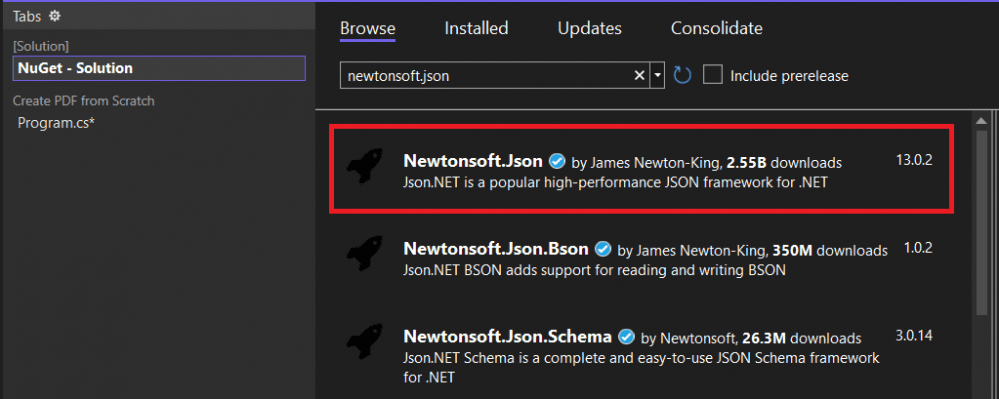
The System.Net library is a built-in library. However, you will have to install the “NewtonSoft” library yourself. To install this library from the Microsoft Visual Studio IDE, go to “Tools-> NuGet Package Manager.” Search for the “Newtonsoft” library. You will see the following packages. Select the first package and click the “Install” button.
The rest of the script is executed Inside the “Main” method of your C# console application.
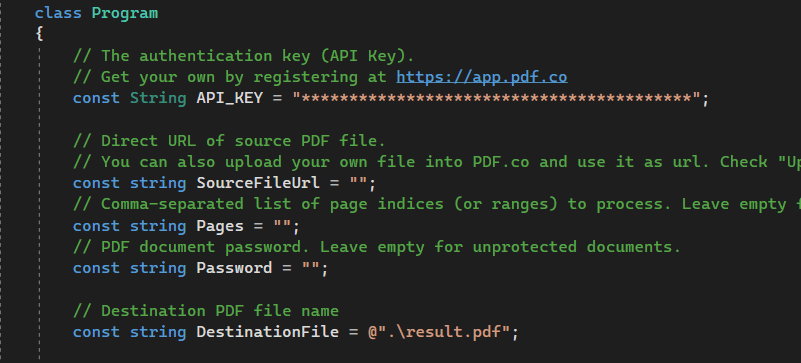
The first step is to Store your PDF.co API key in a variable. You can get your API key by registering at https://app.pdf.co. We will leave it empty for the source file URL to create a new PDF.
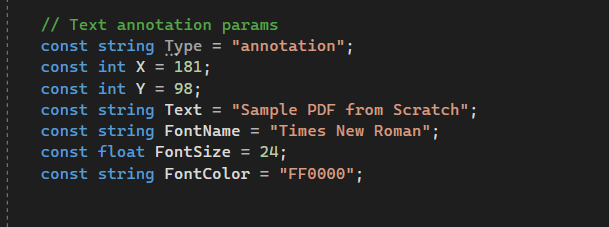
Finally, set up the text annotation param with the right value fields. This parameter represents one or more text objects to add to the created PDF. Each text object is made of parameters separated by a comma.
Here’s the complete code for creating a PDF from scratch in C#:
Program.cs
using Newtonsoft.Json.Linq;
using System;
using System.Globalization;
using System.IO;
using System.Net;

// Visit Knowledgebase for adding Text Macros to PDF
// https://apidocs.pdf.co/kb/Fill%20PDF%20and%20Add%20Text%20or%20Images%20(pdf-edit-add)/macros

namespace ByteScoutWebApiExample
{
    class Program
	{
		// The authentication key (API Key).
		// Get your own by registering at https://app.pdf.co
		const String API_KEY = "*****************************************";

        // Direct URL of source PDF file.
        // You can also upload your own file into PDF.co and use it as url. Check "Upload File" samples for code snippets: https://github.com/bytescout/pdf-co-api-samples/tree/master/File%20Upload/
        const string SourceFileUrl = "https://bytescout-com.s3.amazonaws.com/files/demo-files/cloud-api/pdf-edit/sample.pdf";
		// Comma-separated list of page indices (or ranges) to process. Leave empty for all pages. Example: '0,2-5,7-'.
		const string Pages = "";
		// PDF document password. Leave empty for unprotected documents.
		const string Password = "";

        // Destination PDF file name
		const string DestinationFile = @".\result.pdf";

        // Text annotation params
        const string Type = "annotation";
        const int X = 400;
        const int Y = 600;
        const string Text = "APPROVED";
        const string FontName = "Times New Roman";
        const float FontSize = 24;
        const string FontColor = "FF0000";


		static void Main(string[] args)
		{
			// Create standard .NET web client instance
			WebClient webClient = new WebClient();

			// Set API Key
			webClient.Headers.Add("x-api-key", API_KEY);

			// * Add text annotation *

			// Prepare requests params as JSON
			// See documentation: https://apidocs.pdf.co/04-pdf-add-text-signatures-and-images-to-pdf
            string jsonPayload = $@"{{
    ""name"": ""{Path.GetFileName(DestinationFile)}"",
    ""url"": ""{SourceFileUrl}"",
    ""password"": ""{Password}"",
    ""annotations"": [
        {{
            ""x"": {X},
            ""y"": {Y},
            ""text"": ""{Text}"",
            ""fontname"": ""{FontName}"",
            ""size"": ""{FontSize.ToString(CultureInfo.InvariantCulture)}"",
            ""color"": ""{FontColor}"",
            ""pages"": ""{Pages}""
        }}
    ]
}}"; ;

			try
			{
                // URL of "PDF Edit" endpoint
                string url = "https://api.pdf.co/v1/pdf/edit/add";

                // Execute POST request with JSON payload
                string response = webClient.UploadString(url, jsonPayload);

				// Parse JSON response
				JObject json = JObject.Parse(response);

				if (json["error"].ToObject() == false)
				{
					// Get URL of generated PDF file
					string resultFileUrl = json["url"].ToString();

                    // Download generated PDF file
					webClient.DownloadFile(resultFileUrl, DestinationFile);

					Console.WriteLine("Generated PDF file saved as \"{0}\" file.", DestinationFile);
				}
				else
				{
					Console.WriteLine(json["message"].ToString());
				}
			}
			catch (WebException e)
			{
				Console.WriteLine(e.ToString());
			}
            finally
            {
                webClient.Dispose();
            }

            Console.WriteLine();
			Console.WriteLine("Press any key...");
			Console.ReadKey();
		}
	}
}
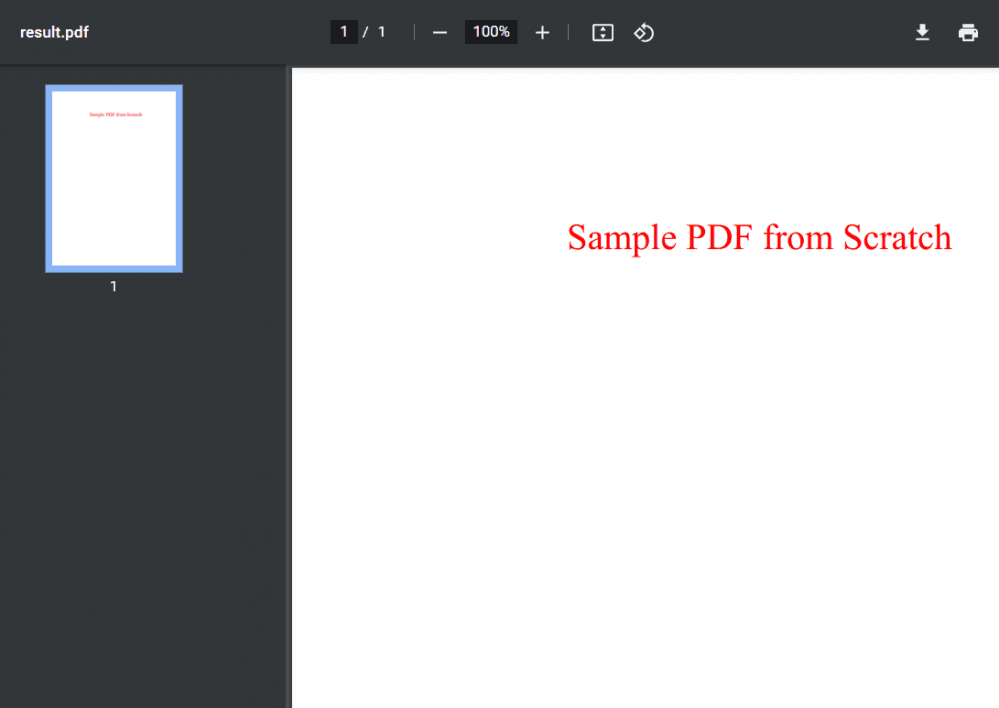
When you run the above script, a PDF file will be generated in your local directory.
Generated PDF Output in C#
Below is the generated PDF from scratch.
You also have the option to generate a secured PDF in C# or even a PDF with a QR code with the help of PDF.co Web API. Just follow the provided links if you’re interested in learning how.