Quick Start with Document Parser Template Editor: How To Create a Template
In this tutorial, we will show you how to use the Online Template Editor to create a Document Parser Template. You can follow along by downloading our sample PDF here.
How to Extract One-Line Text
Add Object
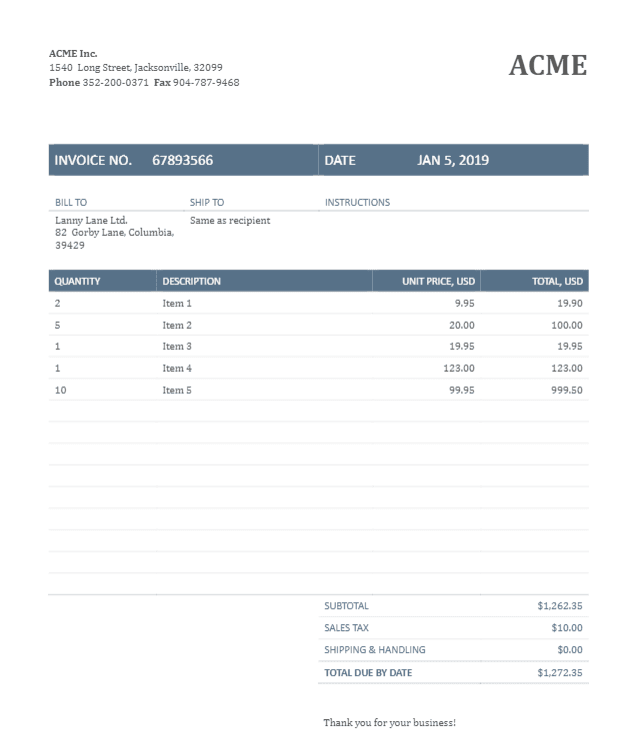
To extract a one-line Invoice Number, kindly click on the Add Object button and select the FIELD from Rectangle.

Drag Object to Invoice Number
Drag the Rectangle object over to the Invoice Number and resize it to fit the whole number. Then, change the Object Name to easily identify the Object.

Test Object
When you click on the Test Object button this will give you a preview of the result.

Configure Object Properties
Now let’s add a Field From Rectangle Object over the Invoice Date, change the Rectangle Name, and select the Data Type to Date.

How to Extract Multi-Line Text
FIELD from Rectangle Object
Next, let’s get the Invoice Address. The Invoice Address is composed of three lines. To extract a three-line address, we will use the FIELD from Rectangle Object. Add the object and drag it over the Address. Then, change the Name to easily identify the Rectangle Object.

How to Extract a Fixed Table
Use TABLE from Rectangle Object
There are several ways to extract a Table. The Table in this Invoice is fixed and covers a one-page only. To get the values in a Fixed Table, we will use the TABLE from Rectangle Object.

Drag Object Over Table
Drag the TABLE from Rectangle Object over to the Table and resize it to cover the whole area. Then, change the Name of the Object to easily identify the Table. Click on the Test Object button to see the result.

How to Extract a Field Based On Search
FIELD Based On Search Object
The FIELD Based On Search Object is another way to get values such as an Invoice Number. Instead of drawing a Rectangle Object over the text, we can use the Expression property to find the text. This makes it easier to parse data with no fixed location. To get started, click on the Add Object button on the top left corner and select FIELD Based On Search.

Expression Field
On the Selected Object Properties, look for the Expression field. Kindly enter the word SUBTOTAL. This will look for the word SUBTOTAL in the Invoice.

Insert SPACES Macros
Now click on the Insert Macros button and select SPACES. This will now look up the word SUBTOTAL with one or more spaces after the word.

Insert Money Macro
Click on the Insert Macros button again and select Money. This time it will look up the word SUBTOTAL with one or more spaces and a decimal number.

Configure Object Properties
Place a checkmark on the Regex checkbox and change the Data Type to Decimal or Currency. When you click on the Test Object button this will look up the SUBTOTAL{{SPACES}}{{MONEY}} pattern. When a match is found it will return the decimal number.

Find Sales Tax
Now we will find the SALES TAX amount in the Invoice. To do that, use the same Macros as the SUBTOTAL. Kindly enter SALES TAX{{SPACES}}{{MONEY}} in the Expression field.

Find Total
In addition to the two examples above, we will also find the TOTAL DUE BY DATE amount. Kindly enter TOTAL DUE BY DATE{{SPACES}}{{MONEY}} in the Expression field.

How to Add A Static Value In The Template
STATIC Value Object
The STATIC Value Object allows you to add text or data in the Template that may or may not be available in the PDF that you would like to Parse. To use this Object, click on the Add Object button on the upper left corner and select STATIC Value.

Enter Currency Value
Under Selected Object Properties, enter USD in the Value field. Change the Name to currency to easily identify this Object.

Enter Company Name
Instead of parsing the Company Name we will add it as a STATIC Value. Add a STATIC Value object and enter ACME Inc.

Document Parser Template Result
You can give your New Template a Name and Save the Template To File. You can also Save the Template to the Document Parser Manager in PDF.co. Click on the Run Template button to see the result.
Great! We have successfully created a re-usable Document Parser Template for this sample Invoice.

In this tutorial, we explained the different functions of the Document Parser Objects. We used the different Objects to parse the data in the Invoice. We used the Macros in the Expression to search for specific data that follows a certain pattern. And, we also learned how to add a STATIC Value to the extracted Invoice.
Video Guide
Related Tutorials