How to Send Email with Attachment to Zapier and Merge them into a Single PDF using PDF.co
In this tutorial, we will show you how to set up the Email by Zapier so you can receive emails directly in your Zap. We will also show you how to convert an email into a PDF and merge it with its attachment into a single PDF using PDF.co.
IN THIS TUTORIAL
Create a Zap and Make a New Inbound Mail with Zapier
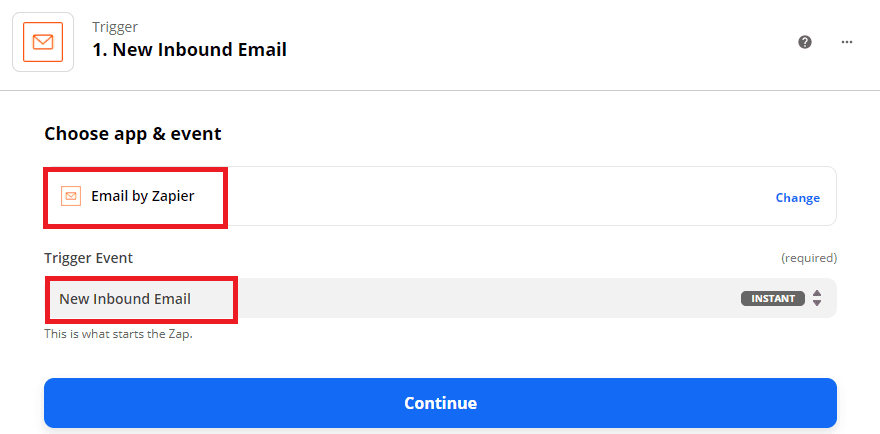
First, let’s create a Zap. Choose Email by Zapier as the App and New Inbound Email as the Trigger Event.
Create a Zap and Make a New Inbound Mail with Zapier
First, let’s create a Zap. Choose Email by Zapier as the App and New Inbound Email as the Trigger Event.
Set Up the Trigger and Enter Zapier Email Address
Next, let’s set up the trigger. In the Email Address field, enter your desired Zapier email address. Copy the email address and click on the Continue button.
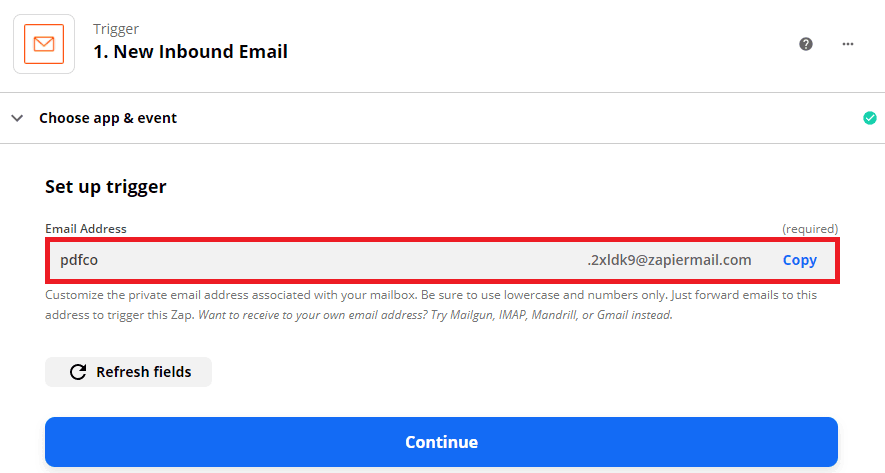
Write Email with Attachment
Then, compose an email with an attachment and send it to your Zapier email address.
Test the Trigger
Let’s test the trigger to make sure that configured it correctly.
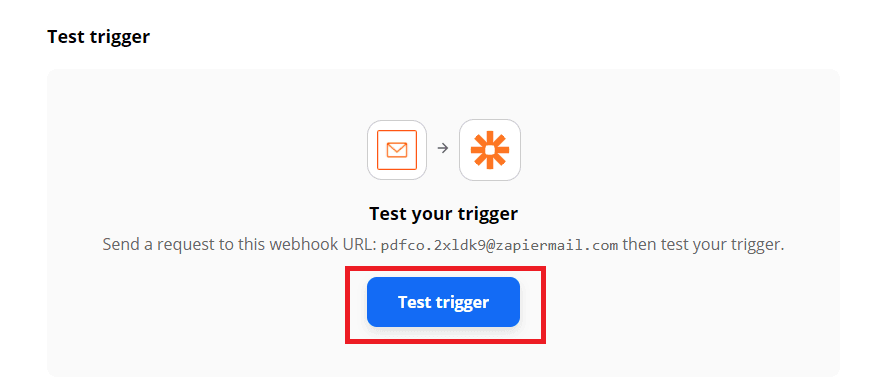
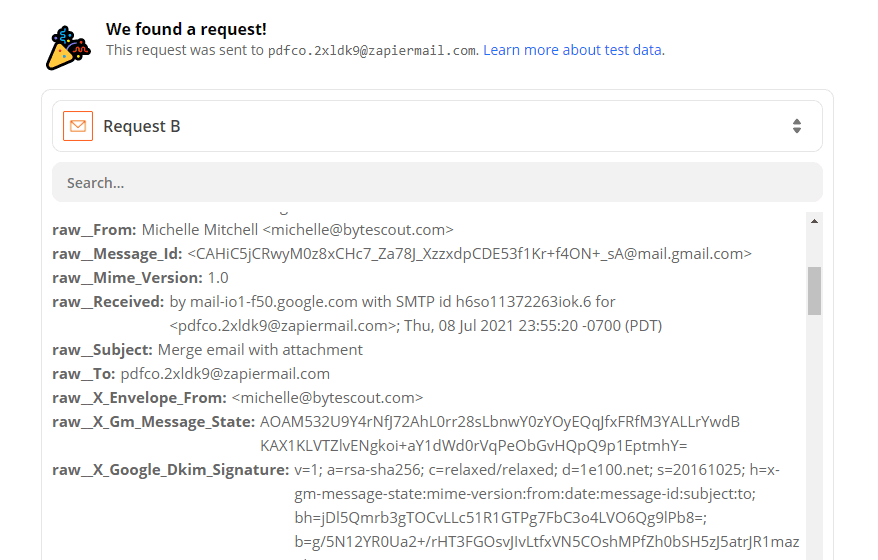
Great! Zapier processed our request and returned the email we sent to our Zapier email address.
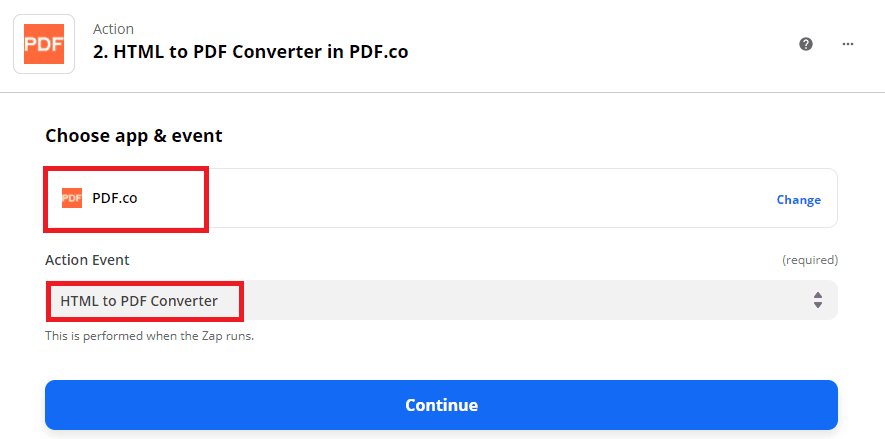
Convert Email to PDF using PDF.co
Now, let’s convert our email to PDF using PDF.co. In the next step, choose PDF.co as the App and HTML to PDF Converter as the Action Event.
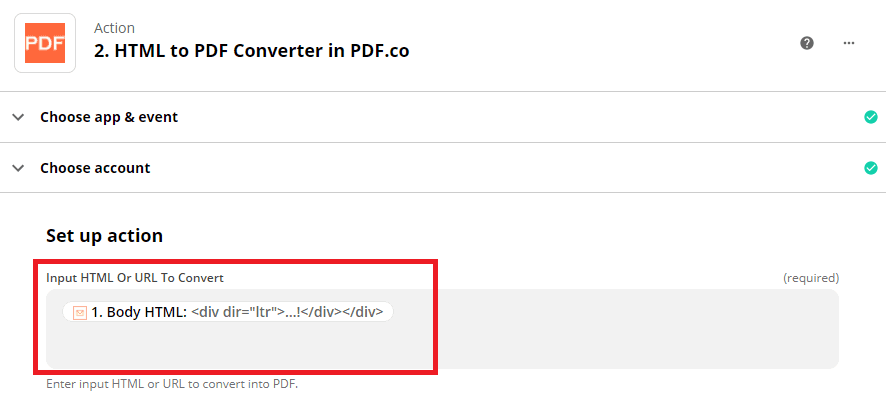
Input HTML or URL to Convert Field
In the Input HTML or URL To Convert field, select the Body HTML link from Email By Zapier.
Send HTML Configuration to PDF.co
Let’s send our HTML To PDF configuration to PDF.co to Test & Review.
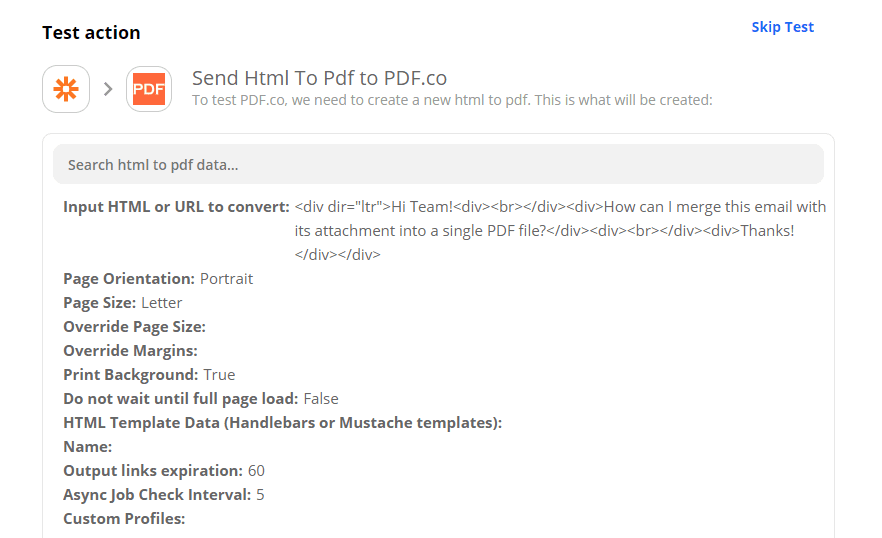
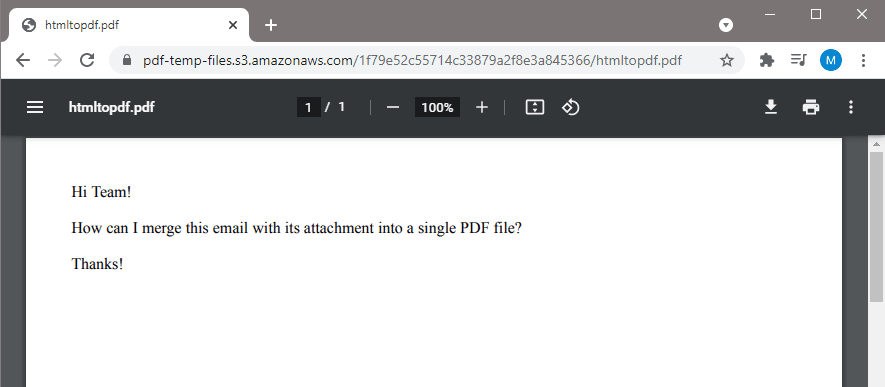
Excellent! PDF.co returned a temporary URL of the generated PDF. We will now use this PDF as one of the sources in our next step. To see the PDF, simply copy and paste the URL into your browser. Here’s what it looks like.
Merge PDF and Zip Attachment
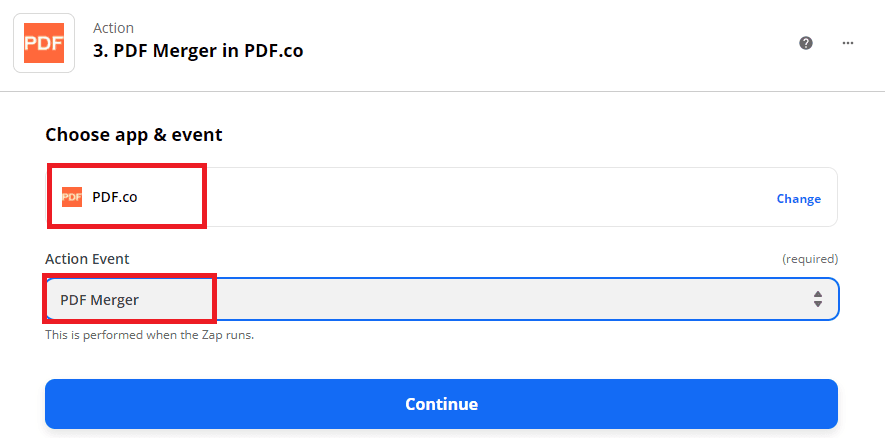
We are now ready to set up our third step to merge the PDF and the email attachment into a single PDF. Choose PDF.co again as the App and the PDF Merger as the Action Event.
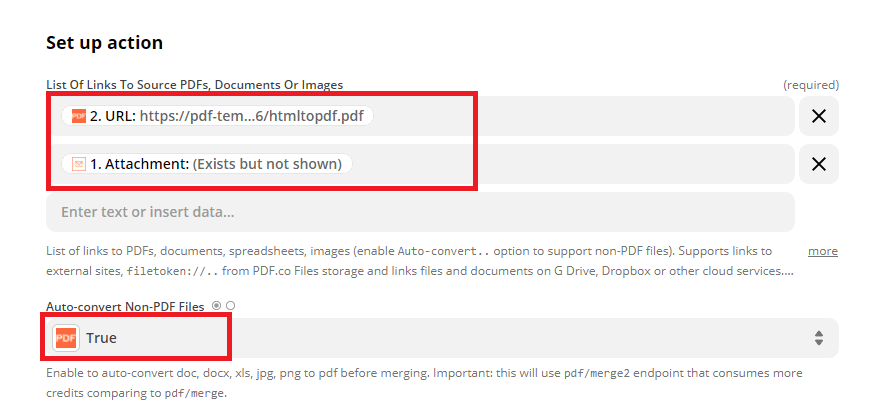
Configure the PDF Merger
Let’s configure the PDF Merger.
- In the List of Links To Source PDFs, Documents, or Images field, choose the PDF.co generated URL for the PDF and the Attachment link from Email by Zapier.
- In the Auto-convert Non-PDF Files field, select True. This will allow us to merge the PDF.co PDF file and the Zip file generated by the Email by Zapier for the email attachment.
Send to PDF.co for Test & Review
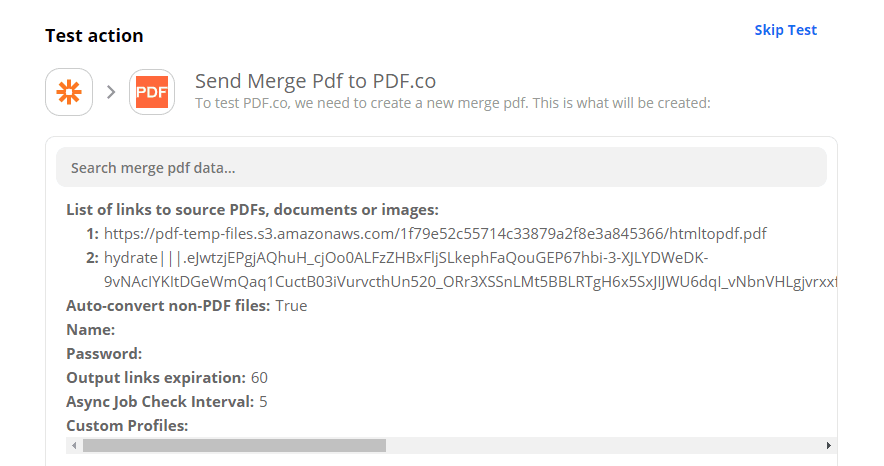
Let’s send the PDF Merger configuration to PDF.co to Test & Review.
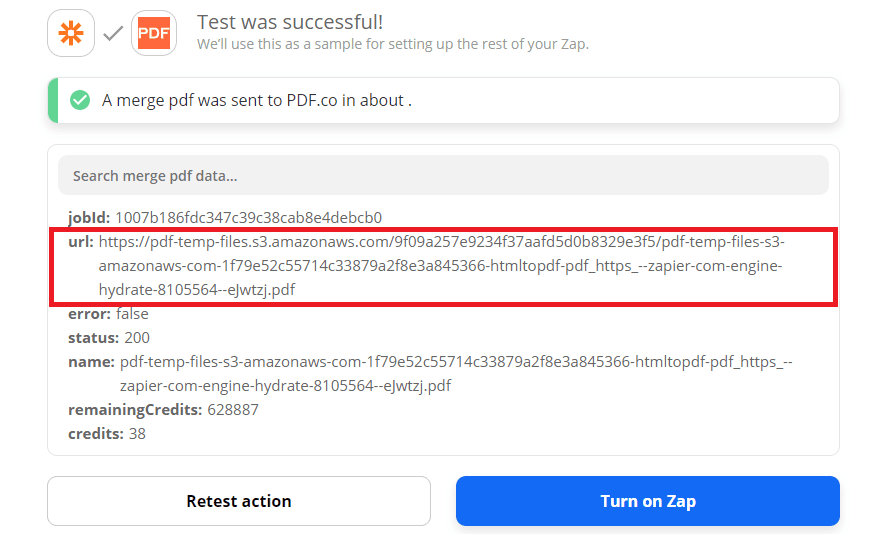
Fantastic! Our test was a success. PDF.co generated a temporary URL of the merged files. You can copy and paste the URL into your browser to preview the result.
We have successfully merged the email and its attachment. Here’s the final output of our Zap:
In this tutorial, we learned how to set up the Email by Zapier so we can send emails directly to our Zap. We converted the email to PDF using the PDF.co HTML To PDF Converter. We merged the PDF and the email attachment that is inside a Zip into a single PDF using the PDF.co PDF Merger. The PDF.co PDF Merger can unzip a Zip file and merge specific or all of its contents. It can include and exclude files that are in PDF, XLS, RTF, JPG, and other supported formats.