How to Convert PDF to JSON Using the PDF.co API Tester
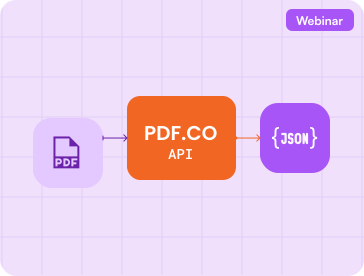
This tutorial shows how to convert a PDF into structured JSON using the PDF.co API Tester. The tester lets you run the request and inspect its response without writing any code.
The PDF-to-JSON output can include text, coordinates, fonts, images, vectors, and other document-layout information.
Step 1: Open the API Tester
Sign in to your PDF.co account and open the Request Tester, also referred to as the API Tester.
Your PDF.co API key is required to run requests. When the tester is opened through your account, the key may already be available.
Step 2: Select the PDF-to-JSON Endpoint
In the endpoint list, select the PDF-to-JSON operation that uses:
POST /v1/pdf/convert/to/json2
This endpoint converts regular PDFs and scanned documents into a detailed JSON representation.
Step 3: Configure the Request
Enter a direct, publicly accessible URL for the source PDF.
Use the following request body as a starting point:
{
  "url": "https://pdfco-test-files.s3.us-west-2.amazonaws.com/pdf-to-json/sample.pdf",
  "inline": true,
  "async": false
}
The parameters perform the following functions:
urlspecifies the source PDF.inline: truereturns the converted JSON directly in the response.async: falsewaits for the conversion to finish before returning the result.
To process selected pages, add the pages parameter. PDF.co uses zero-based page numbering:
{
  "url": "https://example.com/document.pdf",
  "pages": "0-2",
  "inline": true,
  "async": false
}
This example processes the first three pages.
For a scanned document, you can also specify its OCR language:
{
  "url": "https://example.com/scanned-document.pdf",
  "lang": "eng",
  "inline": true,
  "async": false
}
Step 4: Run the Request
Click the tester’s Run or Send Request control.
A successful response will have:
{
  "error": false,
  "status": 200,
  "pageCount": 1,
  "body": {
    "document": {}
  }
}
The complete body object contains the extracted document structure. Depending on the source file, it can include:
- Page dimensions and page numbers
- Text values
- Font names, sizes, and styles
- Text coordinates
- Images and vector objects
- OCR results for scanned pages
Expand the objects in the response panel to inspect the extracted content.
Step 5: Return a Downloadable JSON File
For this demonstration, inline is enabled so the output appears directly in the tester.
To receive a temporary URL for a generated JSON file, change the setting to:
"inline": false
PDF.co will return an output URL that can be opened or downloaded. Temporary output links expire according to the account and request settings.
For large documents, set async to true. The initial response will contain a job ID that can be monitored using the Background Job Check endpoint.
See the PDF-to-JSON API documentation for the complete parameter list and implementation samples.
Conclusion
The PDF.co API Tester provides a quick way to convert a PDF to JSON and examine the resulting document structure. After validating the request, you can copy the same endpoint and parameters into your application or automation workflow.
Get Your API KeyAPI Documentation